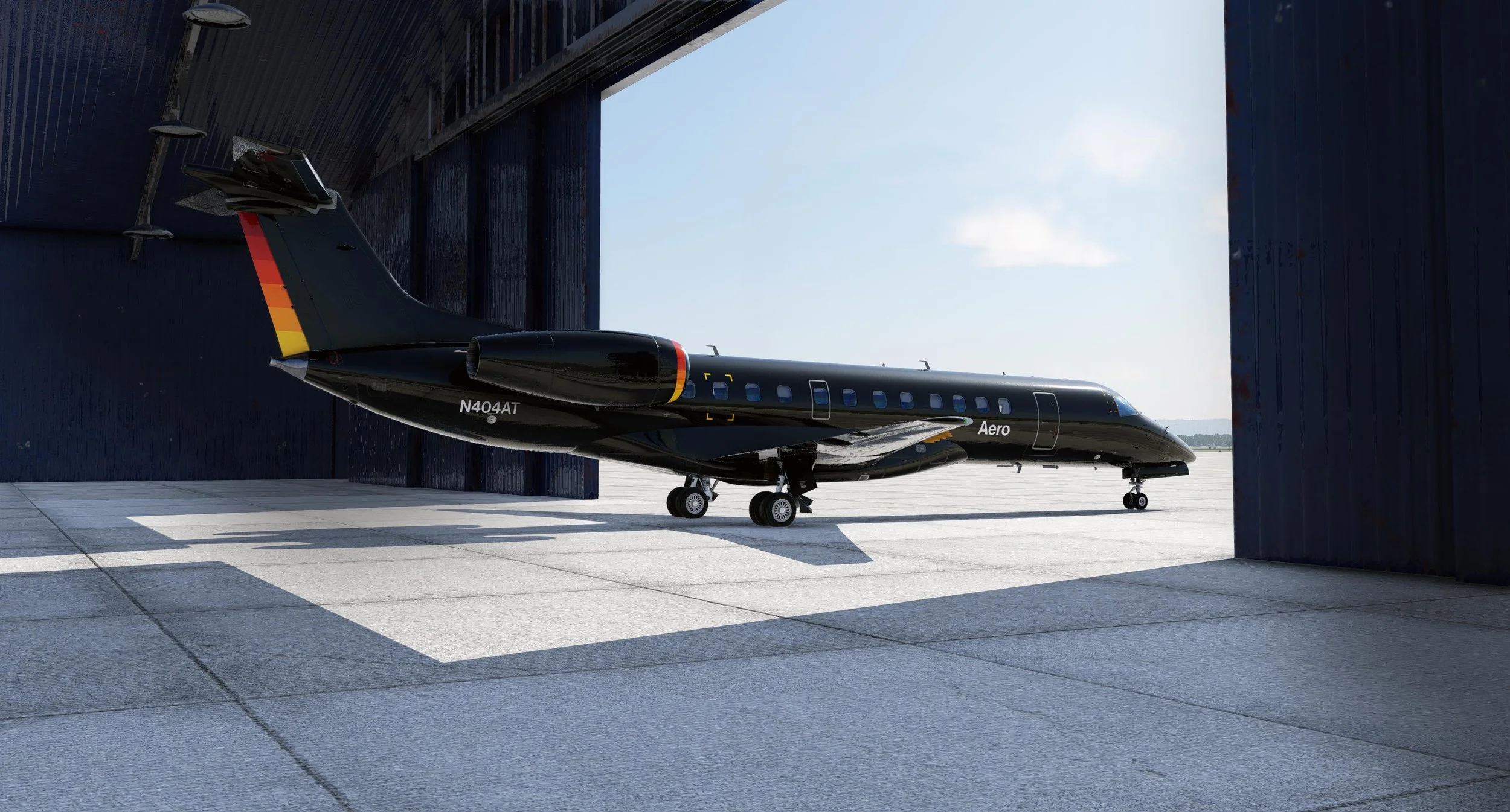
Official Demo Flight


Initial information

Although learning how to fly a new airliner can be daunting, thanks to this demo flight and our new feature AirComms, you’ll be flying the ERJs in no time.

Disclaimer: This demo flight assumes that you have a basic knowledge of FMS programming. As a minimum, you should know what SIDs, STARs, and airways are.

What you'll learn in this Demo Flight

This Demo was designed to give you a quick flight around an hour long, in which you will learn:

  • How to do a full cold & dark power up and engine start

  • How to calculate the performance data using the EFB

  • How to program the flight plan using the Authentic FMS:

    • How to load a SID and a SID TRANSITION
    • How to load an airway
    • How to load a waypoint when there are multiple waypoints around the world with the same id
    • How to delete a waypoint
    • How to load a STAR and a STAR TRANSITION
    • How to load an APPROACH and an APPROACH TRANSITION
    • How to clear a discontinuity
    • How to enter the performance data into the FMS
  • How to take off using the correct takeoff autopilot modes

  • How to fly the plane using LNAV

  • How to manage your vertical profile and speeds

  • How to do a DIRECT to another waypoint

  • How to do an ILS landing

Quick Tips (Please read this!)

Embraer uses the Dark & Quiet philosophy

  • This means that if all systems are in the normal state in flight, all the buttons will be dark and there will be no aural warnings.
  • Generally dark switch = ON and a white stripe = OFF or broken.
  • There are a few exceptions to this, which we will point out.

Pop Up Panels

  • Left-click on any of the displays to pop them up.
  • Left-click and drag to move the display on your screen.
  • Right-click on the pop-up to close it.

Hidden Click Spots

  • We added many extra click spots to the pop-up screens for your convenience. Just hover over any value and use your mouse wheel to change it.
  • You can zoom in or out on the map by rotating the knob on the MFD or by clicking on the range indicator on the MFD screen in pop-up view.

Stuck? Check the Frequently Asked Questions

Most questions are asked repeatedly, so learning the common gotchas ahead of time will reduce the chance of running into issues later.

You will find them here.

Using your keyboard with the FMS and EFB

FMS

You can type into the FMS scratchpad, however it only works with the FMS being popped up.

  1. Click on either of the FMS screens to open it in a pop up view.
  2. Click on the pop up scratchpad (bottom part of the FMS). A gray line will appear on the bottom of the screen, indicating that DKE is active
  3. Click anywhere outside of the FMS pop up to disable DKE

Note: Pressing TAB is not implemented like it is on the E-Jets. The ERJs use a different system for drawing the pop up screen which does not support toggling via a keyboard key.

EFB

  • When using the EFB, you simply click on the screen and the edges will turn blue. That means you have focus on the screen and you can now type.

  • If you click outside of the EFB screen, the blue edge will turn off, which means the focus is no longer on the EFB screen and you can use your keyboard as usual.

  • If you are clicking on the EFB, and the screens are blue, but the EFB is not responding, try to click on the "Home button" of the EFB, or through the dropdown menu on top of the X-Plane bar, which brings up the EFB in a 2D pop-up window, and see if the input works there.

AVITAB

  • This works the same as with the EFB, except you won’t get the blue edges.

  • You can also bring Avitab up in the 2D Popup window, by clicking on the "Tablet Home button"

  • Any issues related to Avitab are out of our hands, we are simply providing Avitab as it is, but if it doesn't work, that would need to be reported to the developers of it.

Don’t have the Europe Scenery installed?

Unfortunately in X-Plane 12, runways are only displayed at airports where you have your scenery installed. If you have no scenery, the runways are still there, however they are not visible, because they are under the 3D water.

We recommend that you install the Europe Region scenery, however if you can’t, you’ll still be able to complete most of the demo flight. You’ll just have to take off from the water and the landing and ILS might not be possible, due to the airport suddenly being at sea level and in fact under the water (So a bit Sully-like), but you will learn everything just the same.

Navigation Data

Navigation Data are files in X-Plane which the FMS uses to read the available procedures and waypoints around the world to construct flight plans. Nav Data is updated every month, to reflect the changes that happened to the real-world navigation database.

If you are not subscribed to any Navigation Data (for example from Navigraph), you are using the default navigation data that comes with X-Plane. This data is out of date, and you may not be able to find the exact procedures of this demo flight in the FMS. You can still select the ones with similar names (usually the name of each procedure will have a different number at the end of the name), however, your demo flight might be a bit different.

Intelligent Guidance

AirComms

This entire Demo Flight can be guided by AirComms™, our intelligent in-sim guidance system. Go to the EFB AirComms tab, select the first tutorial and let AirComms give you clear instructions directly in the sim.

Demo Flight Start

Our Flight Plan

Welcome to Bergamo, Italy! This is my birthplace, and you should absolutely visit it if you ever get a chance because it is gorgeous, and most people on their way to Milano miss this absolute gem. See the picture below. Our flight today will take us from Bergamo, Italy, across the Alps to Vienna, Austria.

In X-Plane, load the jet at LIME, RWY 28.


Our flight plan is:

LIME/28 LEGL1V.OSK1F OSKOR M985 MALUG DCT VP011 DCT EVAXI DCT ABTAN ABTA2W LOWW/BAL4N.I34


The preview of the flight plan was generated in Navigraph Charts.


This flight was generated using Navigation Data from February 2026 (AIRAC 2601). It is possible that some sections of the demo flight might not be up to date in the future and will not available in the FMS. In such case, please let us know and we will update the flight.

Start Cold and Dark

Load the aircraft with the engines not running:

  1. Open the Flight Configuration X-Plane menu

  2. Select this aircraft and click on Customize

  3. On the bottom right, uncheck "Start with engines running"

  4. Click on Apply changes

EFB

Tip: Click the tablet home button to pop up the EFB.

1. Load the plane

We will start with the tablet on your left-hand side, also known as the EFB (Electronic Flight Bag). First, verify the unit of measure (LBS/KGS) in the bottom left corner of the EFB. If you want to change them, you can do it in the Settings tab.

Please note that the FMS is always in LB, as on the real plane.


Go to the Weight & Balance Tab. Here you have the option to fetch weight & balance data from Simbrief (watch tutorial) or enter it manually. For this tutorial, we will enter it manually:

  1. Change the dropdown option from ZFW (Zero Fuel Weight) to Payload and enter 8000 lb (4536 kg)

  2. Enter Fuel Weight 6000 lb (2725 kg)

  3. Click on REQUEST MANUAL LOADSHEET

  4. Verify the load sheet and PRESS the LOAD PLANE button

The aircraft should now be loaded with passengers, cargo and fuel. This is indicated by the green outline on the load sheet box.

2. Connect the GPU

On the Ground Services tab, click on the toggles for these items:

  • Remove Engine Covers

  • Connect GPU

Power Up & Engine Start

Let’s wake her up!

  • On the Overhead panel right above you, turn the batteries on.

    • TURN the BATT 1 switch to AUTO

    • TURN the BATT 2 switch to AUTO

    Wait for the screens to turn on and PRESS the flashing WARN and CAUT buttons to acknowledge the warnings.

    Notice that with batteries ON and avionics still OFF, only the EICAS,radios (RMUs), and backup displays will load.

    Drama Queen Alert

    During the power-up, the airplane essentially thinks it's dying and will display many caution messages, triggering the caution light. This is normal. The messages should all be cleared automatically once you are done with the startup.

    So just keep calm and keep smashing that CAUT button. I recommend assigning the Clear master caution command to a key or button on your keyboard or hardware, since you'll be pressing it a lot.

  • On the overhead panel TURN AVIONICS MASTER 2 ON. Wait for the MFD1 to load and then click on SYS > ELEC. Verify that battery voltage is more than 19V and GPU voltage is between 26 - 29V before connecting the GPU. If all is fine, go to the next step. If it is not fine, you might need to call maintenance! (Reload the aircraft in X-Plane)

    Note: Learn more about real world procedures in the Expanded Checklist & Procedures Guide in the aircraft folder.

  • On the overhead panel PRESS the GPU AVAIL button to draw power from the Ground Power Unit.

  • Now that we have the GPU providing power to the aircraft, we can turn on the remaining screens, knowing they won’t drain our batteries.

    On the overhead panel TURN AVIONICS MASTER 1 ON.

  • Next you'll turn the fuel pumps ON.

    • TURN the FUEL PUMP 1 switch to ON

    • TURN the FUEL PUMP 2 switch to ON

  • Pro Tip: For the next two steps, pop out the EICAS (the screen in the center) by clicking in the center of the display so you can monitor APU status while operating the overhead panel.

    Before starting the APU, you need to test the fire warning systems.

    Press and hold the FIRE DET TEST pushbutton for approximately 3 seconds

    Look out for "3-4-5" lights:

    • 3 lights on the overhead

    • 4 blinking lights on the dashboard (2 caution + 2 warning, 1 set on each side)

    • 5 messages on the EICAS

    1. Set the APU MASTER switch to ON first and observe the EICAS.

    2. Wait until the APU indicator stops flashing and becomes steady. Only once the indication is stable may the APU be started.

    3. Turn the APU control switch to START, hold it briefly, then release. Observe the EICAS and confirm APU N1 % is increasing during the start sequence.

    4. Once the APU generator is at 100% and supplying power, switch off the GPU generator on the overhead panel. You can now also disconnect the GPU from the airplane from the EFB Ground Services tab.

    5. Turn the SHED BUS switch to OVRD.

      SHED BUS powers non-essential items like cabin lighting, taxi lights, or a coffeemaker. The electrical system disconnects the shed bus if fewer than 3 generators are active, which occurs during startup.

      It's usually overridden for passenger convenience to keep the cabin powered. For realism, turn it to OVRD before disconnecting the GPU, but don’t worry, leaving it in AUTO won't cause the plane to fall from the sky.

    • Emergency Lights ARM

    • NAV Lights ON

    • Logo Lights ON (At night)

    • Seatbelt Sign ON

    • No Smoking sings ON

    • Throttles are at IDLE

    • All doors CLOSED

  • The engines will not start if you do not do this.

    To start the engines, the pneumatic panel must be configured to "3 WHITE TO THE RIGHT".

    In other words, three white stripes at the bottom and the XBLEED switch turned to the right.

    • PRESS the PACK 1 button ON

    • PRESS the PACK 2 button ON

    • SET the XBLEED switch to OPEN

    • PRESS the APU BLEED button ON

    • LEAVE BLEED 1 OFF

    • LEAVE BLEED 2 OFF

  • Quick shortcut, not realistic:

    • Press the T/O button on the thrust rating panel to set it instantly.

    1. Open the MFD pop up and go to the T/O system page.
      All takeoff data is set using the SET knob and STORE button on the overhead panel above the starters.

    2. Press STORE to begin.

    3. Select the thrust rating with the SET knob. Your options are TO-1 for max available power setting and ALT T/O-1 for a more derated power setting. Leave it at TO-1. Press STORE.

    4. Set the outside air temperature using the SET knob. Use the real OAT, not a derate temperature. Press STORE.

    5. If engine anti ice will be used for takeoff, set REF A/I ON. Otherwise leave it OFF. Press STORE to finish.

    The takeoff data shows yellow until engines start. After engine start it turns blue, and T/O-1 appears on top of the EICAS. If the TO data is missing, you will have a ENG NO TO DATA warning on the EICAS. CHECK A1 PERF message means the data is accepted, but you are not configured for takeoff yet. Ensure the flaps and trim are set for takeoff.

    Typical use: Just press STORE four times and leave the defaults.

  • At this point, the engines can be started. The engines are started by turning the Start-Stop Selector to RUN, pausing briefly, and then rotating it to START. The starter switches are in the bottom middle part of the overhead panel, with plastic guards.

    • TURN the STARTER 2 switch to RUN and WAIT for one second for the FADEC to initialize.

    • TURN the STARTER 2 switch to START, HOLD for one second, release.

    • Check EICAS for increasing N2 on engine 2 and confirm positive fuel flow.

    • Engine start is complete once N1 stabilizes around 22~25.

  • Good job! Now let's start Engine 1.

    • TURN the STARTER 1 switch to RUN and WAIT for one second for the FADEC to initialize.

    • TURN the STARTER 1 switch to START, HOLD for one second, release.

    • Check EICAS for increasing N2 on engine 1 and confirm positive fuel flow.

    • Engine start is complete once N1 stabilizes around 22~25.

EFB

Calculate your Takeoff V-Speeds

Although the FMS can calculate V-speeds, the performance functions in the real ERJ FMS are not certified. Real pilots use performance tools. You should use the EFB as well, as it provides much more accurate data due to the additional parameters you can adjust.

  • Go to the Takeoff perf tab. This page is used to calculate Takeoff Performance data and it allows you to send the data directly to the PFD.

    • Airport: LIME

    • T/O Weight: 40,707 lb
      This is with the E145. If you are flying any other plane, find your takeoff weight on the Weight & Balance loadsheet

    • Runway: 28

    • Thrust: TO-1

    • Condition: DRY

    • Flaps: 9
      99% of the time, you will use flaps 9 for takeoff.  Use flaps 22 for a super short runway, or if there is an obstacle right in front of the runway.

  • Enter the weather parameters based on your weather conditions. You can open the X-Plane Weather Configurator and review the wind on the ground, temperature, and Altimeter Setting (QNH). In my case it was my case, the wind was 7 knots at 357°, so we’ll enter it in the degrees/speed format as 357/7

    • Wind: 357/7

    • Temp: 18°C

    • QNH: 29.90 inHg
      You can enter HPA or IN values for QNH, and the tablet will use the correct units based on your format

  • You will now be presented with the Takeoff V-Speeds.

  • Press the Send to PFD on the top right of the EFB.Verify speeds appear on the bottom of the PFD speed tape.

  • On the bottom of the MFD, press RTN

    1. Go to MFD → SPDS

    2. Press the buttons under each speed to cycle through these modes:

      • No box = hidden

      • Small white box = editable. Use the SET knob on the MFD to enter each one of your V-Speeds.

      • Large white box = shown on speed tape

FMS

Entering your flight plan

This section outlines the essential steps to enter a flight plan. For a full description, see the FMS Manual found in the aircraft folder.

1. Programming the FMS

ROUTE: LIME RWY 28 → LEGL1V OSKIF transition → OSKOR M985 MALUG DCT VP011 DCT ABTAN → ABTA2W → ILS RWY 34 BAL4N

  • Click the CDU screen in the cockpit to open the pop-up MCDU.

    If you see NAV DATA OUT OF DATE in the scratchpad, press the CLR key to clear the scratchpad.

    There are left and right select keys (LSK and RSK) on the side of the FMS. These are used to select options on the screen.

  • Press the line select key next to FLT PLAN or press the FPL button. 

    Note: If you started from cold and dark, you will first be taken to the POSITION INIT page. Press the RSK2 key to load the position at LIME.

    Then continue to FLT PLAN

  • You are now on the Flight Plan page, where airports and routing are entered. If you completed the POSITION INIT, the ORIGIN will already show LIME. If not, you should enter it manually.

    1. In the scratchpad type: LIME. Press the line select key next to ORIGIN

    2. In the scratchpad type: LOWW. Press the line select key next to DEST

    1. On the FPL page, press the line select key next to DEPARTURE

    2. Select Runway: RWY 28

    3. Select SID: LEGL1V (Press NEXT to find it on the second page)

    4. Select SID Transition: OSKIF

    5. Select REVIEW if you want to see the SID waypoints.

    6. Press ACTIVATE to load the departure.

    7. You return to the FPL page with the SID inserted.

  • Scroll down the FPL page to the first empty VIA.TO line.

    AIRWAY SEGMENT

    In the scratchpad type: M985.MALUG. Press the line select key next to VIA.TO

    All waypoints along airway M985 up to MALUG are inserted automatically.

    ADD A WAYPOINT

    In the scratchpad type: VP011. Insert it on the next VIA.TO line.

    Since there are multiple VP011 waypoints worldwide, select the first one in Austria.

    _________________

    Please note that the VP011 is not an IFR waypoint, meaning it wouldn’t be used for a real-world route, however, we are only loading it so that we can demonstrate how to select a waypoint with multiple occurrences of the same ID, and we will also use it to demonstrate how to delete a waypoint later.


  • The Honeywell style system requires closing the flight plan before arrival or performance data entry.

    1. Press the line select key next to DEST to copy LOWW to the scratchpad.

    2. Insert it on the next VIA.TO line.

    The route is now closed.


    1. Press NAV >ARRIVAL

      If you can’t access the ARRIVAL page, you did not close your flight plan in the previous step.

    2. Runway: Select RWY 34

    3. Approach: Select ILS RWY 34

    4. Transition: Select BAL4N

    5. STAR: Select ABTA2W

    6. Review if desired, then press ACTIVATE.

  • You will see that after VP011 waypoint, there is a:

    >> DISCONTINUITY <<

    Press DEL. Then press the line select key next to the waypoint above the discontinuity that says “THEN”.

    This will delete the discontinuity and the route is now continuous.


    _____________
    Discontinuities explained

    Discontinuities occur when the ROUTE section ends at a waypoint different from the first waypoint of the arrival procedure. A discontinuity is also visible on the map as a gap between two waypoints.

    In our case, the route ends with VP011, and the ARRIVAL (STAR) begins with ABTAN, so the FMS doesn’t know how to connect these two waypoints.

    If you entered ABTAN as another route waypoint after VP011, there would be no discontinuity, because the route would end with the same waypoint (ABTAN) as the arrival's first waypoint so the FMS could connect these two together.

  • Congrats! You have now entered the whole flight plan. You’re doing great so far!

    Next, you’ll want to check the flight plan on the map to ensure you have a continuous route and that all waypoints are loaded correctly. 

    Switch to the PLAN mode of the map by clicking under PLAN on the bottom MFD options.

    There are two ways to cycle through the flight plan:

    • Quick & Easy
      Use the hidden click spots on the MFD. In pop-up view, hover over the North arrow on the plan. Scroll with the mouse wheel to move through the flight plan

    • Realistic
      Press MFD > JSTK and then keep pressing SKP to “skip” to the next waypoint

  • The last step is to enter your cruise altitude and current gross weight, so that the FMS can calculate the Top of Descent.

    1. Press the PERF button > PERF INIT

    2. On pages 1, 2 and 3 leave all parameters on default.

    3. On page 4, enter “310” or “31000” as your cruise latitude and insert it under INIT CRZ ALT

    4. On page 5, click on LSK2 next to the empty FUEL field. This will populate the scratchpad with the current fuel read on the gauge. Then insert it back into the same FUEL field.

    5. Press RSK4 to CONFIRM INIT

      ⚠You are then taken to the PERF DATA page which was originally deisgned to be used for calculating vspeeds. However these performance calculations in the real FMS were not certified and are not used in real life.

      Real pilots use performance tools, most ofthen on an EFB. You should use the EFB as well, as it provides much more accurate data due to the additional parameters you can adjust.

    6. Press the FPL button to go to your ACTIVE FLT PLAN page.

 
    1. Download the flight plan file in the X-Plane 11/12 (including SIDs and STARS) format

    2. Save it in X-Plane/Output/FMS Plans.

    3. Start X-Plane, load the aircraft

    4. In the FMS, go to the first ACTIVE FLT PLAN page > LOAD FPL (LSK2), located just below ORIGIN.

    5. Select your route, then ACTIVATE

After Start & Before Takeoff

Alright, we’ve got the engines started, FMS ready, so let’s get ready for take off!

  • All overhead PUSH-BUTTONS should be fully dark (normal state in flight).

    1. Windshield Anti-Ice protection ON (dark)

    2. Bleeds ON (dark)

    3. APU Bleed OFF (dark)

    All overhead SWITCHES should be in the 12 o’clock position, except for the APU.

    1. Press the APU STOP button to shut down the APU
      The APU will spool down. Do not turn the APU switch to OFF yet.

    2. Hydraulic pumps ON

    3. XFEED to AUTO

    4. Once the APU RPM reaches 5% or less, the APU switch can be set to OFF.

    5. SHED BUS switch to AUTO
      Since we now have 4 working generators, meaning the shed bus logic no longer needs to be overridden.

  • Before you take off, you must set the autopilot settings. You'll do this on the glareshield panel.

    • Press TOGA on the throttles. This will activate the Takeoff/Go Around autopilot modes.

    • Set your altitude to 10,000ft using the ALT knob on the glareshield panel. We will level off at 10,000ft before exiting the SID for demonstration purposes.

    • Set the autopilot source to FMS so the autopilot follows the route.
      The autopilot source is selected on the Display Control Panel (DCP) directly above the MFD, where there are three buttons next to each other: ET | NAV | FMS

  • Set flaps to 9 using the flap lever on the pedestal.

    99% of the time, you will use flaps 9 for takeoff.  You would use flaps 22 for a super short runway, or if there is an obstacle right in front of the runway.

  • The gust lock is a safety feature that prevents elevator movement when the aircraft is on the ground. You can see the yellow gust lock bar in front of the throttles.

    AUTOMATIC OPERATION:

    Turn Automatic Gust Lock ON in the EFB > Settings

    • To Unlock: CLICK the GUST LOCK lever and wait 10 seconds for the unlocking process to finish.

    • To Lock: You must be stationary on the ground. Simply CLICK the Gust Lock lever again and wait for the GUST LOCK light to extinguish and the control columns move to the fully forward position.

  • The gust lock is a safety feature that prevents elevator movement when the aircraft is on the ground. You can see the yellow gust lock bar in front of the throttles.

    MANUAL UNLOCKING:

    Turn Automatic Gust Lock OFF in the EFB > Settings

    1. CLICK and PUSH the gust lock lever forward to the intermediate position

    2. WAIT for 10 seconds. When ready, the GUST LOCK light on the glareshield starts flashing

    3. PULL the yoke fully back towards you

    4. CLICK and PUSH the gust lock fully forward to the FREE position

    MANUAL LOCKING:

    1. PULL the yoke fully back towards you

    2. CLICK and PULL the gust lock lever all the way back to the LOCKED

    3. PUSH the yoke fully forward

  • Taxi to RUNWAY 28 and align in the center for takeoff

 
  • You can also set the autopilot settings directly on the PFD pop-up.

    • Click on the PFD to open the pop-up view.

    • You can then change the autopilot source by pressing the ILS1 or ILS2 green annunciator directly below the speed tape.

    • You can set the altitude by hovering over the altitude dial on the top right of the PFD and scrolling with your mouse wheel.

    Most values on the PFD can be changed exactly in the same way. Just hover over them and scroll with your mouse wheel.

OMG!

No VNAV or Autothrottle?

The ERJ does not have VNAV or autothrottle in real life, therefore you are responsible for managing your climbs, descents, and energy. It’s actually quite simple, and you’ll soon realize that this is exactly what makes the ERJs so much fun! 🎢

How to manage your speeds

Managing your speeds correctly is crucial. Overspeeding can cause the AP to go into Overspeed mode, which will pitch the plane up to slow down. This can cause oscillation (flying up and down). Similarly, if you fly too slow, you will be close to your stall speeds, which may disconnect the Autopilot or cause many other issues.

Speed Guidelines

    • 240kts until 10000ft

    • 270kts until 18000ft

    If you are using the FLC autopilot mode, these speeds will be set automatically.

    Mach: The airplane will automatically switch between KTS and MACH.

    • M.56 to M.76 to Cruise for the E135, E140 and E145.

    • The E145XR and Legacy 650 can cruise up to 0.78

    • Start the descent on IDLE at around 0.74M/270. Ensure you do not overspeed. As you descent lower, you might have to start applying a bit of power to mainain your speed.

    • At 14,000ft, start slowing down, and aim to be at 250kts by 10,000ft

    • 10,000ft Start slowing down to reach 8,000 ft at 240 kts

    • 4000 ft ➝ Slow down to 210 kts

    • 10nm to touchdown ➝ Flaps 9‍, then slow down to ‍170 kts

    • 8nm Gear down, flaps 22 ➝ maintain 160 kts

    • 5nm ➝ Slow down to Vapp, then flaps 45 (Vapp calculated with the EFB)

    • 50ft above touchdown ➝ Vref‍, then start retarding the throttles and aim to be idle thrust at touchdown.


Thrust Rating System

The Thrust Rating System (TRS) is used to derate engines for each phase of flight to ensure optimal performance.

You need to manually set the climb and cruise thrust rating.  AirComms will remind you to change your TRS setting if you forget.

    • T/O-1 for max available takeoff thrust

    • ALT T/O-1 for a derated takeoff thrust

    • CON for the maximum continuous (emergency procedures only)

    • CLB for climb thrust

    • CRZ for cruise and descent

    Most of the time, you will use T/O-1 for takeoff, then CLB for climb and CRZ for cruise.

    1. Use the TAKEOFF DATA panel on the overhead to enter your Takeoff Data as explained earlier in Power Up & Startup > Set Takeoff Data for departure.

    2. Set the throttles into the THRUST SET notch, not further!

    3. After takeoff, use TRS buttons to select:

      • CLB after takeoff

      • CRZ after reaching the cruise altitude

    4. Thrust mode is shown on top of the EICAS

  • Pushing past the THRUST SET notch gives max thrust and automatically selects TO-1 and you will not be able to select any other TRS mode.

    If you are using hardware throttles you should set your throttle axis detents like this:

    1. REVERSE - 0.0

    2. IDLE - 0.25

    3. THRUST SET - 0.75

    4. MAX - 1.0

 
  • We created a custom command that can be assigned to your hardware or keyboard, allowing you to press a single button to cycle through the next TRS setting.

    Go to the Flight Configuration menu > Joystick or Keyboard, search for the "Cycle TRS Setting command".

    This is much easier as you simply always press that same button and you don’t have to keep changing your view down to the pedestal to find the individual buttons.

Vertical Autopilot Modes

You have to control the vertical profile using the vertical autopilot modes. You have the usual ones like pitch hold or vertical speed modes. Then there are SPD (speed hold) and FLC (flight level change), both climb and descent functions that are often confused.

Before we take off, I want you to understand the difference between the SPD and FLC autopilot modes.

Manual modes

  • This is the default vertical mode. It is engaged if another mode is disengaged. When in PIT mode, you can use the PITCH wheel on the pedestal to adjust your pitch.

  • Press the VS button, then use the SPD/VS knob on the glareshield panel to set your vertical speed. When VS is active, you cannot adjust your speed bug.

  • SPD is the same as FLCH in other aircraft – flight level change – where the AP will use pitch to maintain your selected airspeed during a climb or descent.

    To make things more confusing, you press the SPD button, but the indication on the PFD will be IAS 🙃.

Semi-Automatic mode: FLC

FLC (Flight Level Change) is a semi-automatic mode used for both climb and descent. When using FLC, you cannot manually adjust the speed or vertical speed.

CLB (Climbing) The aircraft holds a predefined airspeed by pitch:

  • 240 knots from 0 to 10,000 ft

  • Airspeed is gradually and automatically increased to 270 KIAS between 10,000ft to 12,000 feet.

  • This speed stays the same until FL180, where we change to Mach automatically, and climb continues at .56 Mach.

DES (Descending): the aircraft will descend at a pre-defined vertical speed:

  • -2000 fpm above 12,000 ft

  • Vertical speed is gradually and automatically adjusted to -1000 fpm between 12,000ft and 10,000 feet.

Which should you use?

That’s up to you. Different operators have different procedures, but in real life, VS is used most often for descents to follow the advisory path deviation.

  • The easiest way is to use FLC when climbing and descending.

  • If you want more manual control, use VS, PIT, or SPD.

Takeoff

Ok there was a lot of preparation, but we’re finally ready to take off! At this point, you should be on runway 28, aligned for takeoff.

    1. Make sure that you see magenta needles on the HSI on the bottom of the PFD.

      If you do not, you forgot to set your AP source to FMS. Press the FMS button above the MFD.

    2. ROLL and TO on top of the PFD.
      If you do not, press the red To/GA button on the throttles again to activate the takeoff autopilot modes.

  • Press the TO CONFIG CHECK button under the right FMS. You should hear “TAKEOFF OK”. If you don’t, ensure you have:

    • Flaps 9

    • Trim 8° and in the green tape

    • Brakes released

  • On the EICAS, you will see the throttle command indicator match the thrust rating notch. Do not push past the detent, as this will always command TO-1 thrust and override any thrust rating setting that you will want to change later.

  • When you reach VR speed, smoothly rotate at about 3 deg/sec towards the flight director. The aircraft should unstick at about 10 degrees and begin to climb.

  • With a positive rate, retract the gear. Hand fly following the fly director pitch.

  • This is the button in the center of the glareshield, between HDG and AP. Not the NAV button that is on the Display Control Panel.

    Common confusion: There are two buttons with the “NAV” label on the glareshield panel. Don’t confuse them.

    • The one on the Display Control Panel (DCP), right above the MFD, is used to set NAV1 or NAV2 as your autopilot source visible on the PFD. Each pilot has their own DCP.

    • The one on the Mode Control Panel (MCP) between the HDG and AP buttons is used to engage LNAV or localizer.

  • You can engage the AP any time between 400ft AGL, up to 10,000ft. But the general SOP says autopilot should be turned on at Acceleration Altitude, which is 1000ft AGL. The AP must always be engaged, above 10,000ft.

    • Press the SPD button to engage the speed mode and set the speed to 200kts using the SPD knob or PFD Pop-up.

      The airplane will pitch down to accelerate. Real pilots change the speed slowly to prevent excessive pitch change.

    • Press the CLB button on the THRUST RATING panel behind the throttles.

    • Set Flaps 0

    • Once the gear and flaps are retracted, set speed to 230 kts

    • You can generally accelerate to either 240kts. However, our SID has a speed restriction of 230kts up until the LEGLO waypoint, so we will set 230 as our target speed.

  • 🌬🕯

  • Pressing STD will change to the standard pressure setting of 29.92inHg and it will switch the altitude indications on the PFD to the FL format.

    In the US, the transition altitude is always 18000ft. In Europe, the transition altitude varies and can be as low as 3,000 ft (910 m).

    • For demonstration purposes, let’s say ATC told us to level off at 10,000ft before leaving the SID. Since we have set 10000ft as our altitude setting, the airplane will continue climbing and then level off.

    • You do not need to change your TRS mode to CRZ in a level-off during climb. Just keep CLB as your TRS mode and only change to CRZ once you reach your cruise altitude.

 
  • There are two types of buttons with the “NAV” label on the glareshield panel which can often cause confusion.

    • The one on the Display Control Panel (DCP), right above the MFD, is used to set NAV1 or NAV2 as your autopilot source visible on the PFD. Each pilot has their own DCP.

    • The one on the Mode Control Panel (MCP), between the HDG and AP buttons, is used to engage LNAV or localizer.

  • A vectored takeoff is when an aircraft departs without following a predefined route, instead receiving heading and altitude instructions from air traffic control to integrate into the traffic flow

    Pre-Takeoff:

    • Press TOGA: Engage the TOGA button as usual before takeoff.

    During Takeoff:

    • Vertical Mode: After takeoff, the aircraft will enter PIT mode.

    • Lateral Mode: At 400ft, engage HDG mode and follow ATC instructions.

Climb

10,000ft: Landing, inspection & logo lights OFF

After passing the LEGLO waypoint:

You are now out of the SID, so we can accelerate and resume the climb.

  1. Increase your altitude setting to 31,000ft which is our cruise altitude

  2. Press the FLC button. This will resume our climb, set the speed to 240, and it will automatically increase the speed to 270kts, and then to 0.56M

Cruise

At 31,000ft: TRS mode CRZ & reduce thrust

When you reach 31000ft and level off, press the CRZ button on the THRUST RATING panel on the pedestal to set the cruise setting or use the key you bound to our TRS cycle command.

Let the airplane accelerate to 0.65M, then reduce thrust slightly to avoid overspeeding. Once you find the right setting, you should reach an equilibrium where it will hold 0.65M.

FMS

Editing your flight plan

This step will teach you how you can modify your flight plan by adding or deleting waypoints, or doing a direct to.

  • Let’s learn how to delete a waypoint. Go to the FPL page. 

    1. Press FPL to go to the FLT PLAN page

    2. Scroll until you see the waypoint VP011

    3. Press the DEL button. You will see DELETE in the scratchpad

    4. Press the line select key next to VP011

    The waypoint is removed from the flight plan. No separate EXEC or ACTIVATE step is required. The change takes effect immediately.

  • Adding a waypoint works the same way as normal route entry.

    1. Press FPL

    2. Scroll until you find MALUG

    3. Type EVAXI into the scratchpad

    4. Press the line select key directly after MALUG. If MALUG is the last waypoint on the page, press the NEXT button to go to the next page and enter it on top.

    The waypoint is inserted into the route.

  • To skip the next waypoint and fly to any of the following waypoints, you can do a DIRECT to:

    1. Press the DIR button

    2. Scroll until you see the waypoint you want to direct to. In our case, it will be ABTAN

    3. Press the line select key next to ABTAN

    ABTAN now becomes the active next waypoint in the flight plan.

Top of Descent

Altitude restrictions

Before you start the descent, review your flight plan and look for any altitude restrictions.

You’ll notice that several of our arrival waypoints have an above altitude restriction. You must be above 9000ft at ABTAN and WW410, below 18000ft and 8000ft at NIGSI, and above 8000ft at BALAD.

If you want to follow altitude restrictions correctly, you should always lower your altitude setting to meet the next restriction, ensuring the airplane does not descend below it.

Advisory descent path

If the PERF INIT pages were correctly filled with cruise altitude and weight, the FMS calculates your TOD.

A few miles before TOD, a vertical deviation scale appears on the PFD as an advisory descent path. Unlike E-Jets, which descend automatically, ERJs require manual descent at TOD, guided by this indicator.

You can view your distance from TOD on the PROG 2/3 page or by zooming out on the map to see the <TOD> symbol. Keep monitoring it until you have reached it.

↘ At TOD, start descending

  1. Lower your altitude setting to 9000ft.

  2. Press VS and set your vertical speed to -2000 fpm to start descending.

  3. Set throttles to idle (Important!)


Manage your speed & altitude

  1. Descend on idle at around 270/0.74M. Ensure you do not overspeed.

  2. Monitor the descent path pointer and adjust your vertical speed to keep the pointer centered.

  3. At 14,000ft, start slowing down, and aim to be at 250kts by 10,000ft. Add thrust if needed to maintain your speed.

  4. After passing WW410, lower your altitude setting to 8,000 ft (next altitude restriction)

  5. After passing BALAD, lower your altitude setting to 3,000 ft, as this is the altitude of the Final Fix for the approach.

EFB

Calculate your landing V-Speeds

You will want to do this to find your correct landing speeds.

  • Press the PERF button on the FMS, then > PERF DATA page 2/4. Here you will find your distance to the destination, ETA, fuel remaining, and gross weight.

    The gross weight is in thousands, so if the GROSS WT parameter says 36.2, your landing weight will be 36,200 lb.

  • Go to the Landing perf tab on the EFB. You will calculate the Landing Performance data the same way you did for Takeoff. Fill out the input fields like this:

    • Airport: LOWW

    • Landing Weight: As explained above

    • Runway: 34

    • Flaps: 22

    • Condition: DRY

    • Icing: NO

    • Wind: (Check your weather) 

    • Temp: (Check your weather) 

    • QNH: (Check your weather) 

    • Press COMPUTE

    • Press Send to PFD in the top right corner


Don’t want to calculate your landing speeds?

If you want to fly casually without realistically calculating your landing speeds, use these rules of thumb for Approach speed (Vapp) and Reference landing speed (Vref)

  • Flaps 45: Vapp: 135 kts, Vref: 130 kts

  • Flaps 22: Vapp: 140 kts, Vref: 135 kts

Approach

You have now descended to 3000ft, and the plane should level off, because that is what the altitude setting was set to.

Up until now, the FMS was the source of the autopilot. This is indicated by a magenta FMS indication on the mid-left section of the PFD. So now we have to set up the approach.


ILS Approach Preparation

Set your approach course

You are currently flying in LNAV with magenta needles on the PFD. However, you can only change the course if NAV is the autopilot source.

Therefore, you will momentarily switch your autopilot source:

FMS ➞ NAV ➞ set the Course ➞ Back to FMS

To avoid flying off in a random direction, use heading mode to fly straight.

After passing WW980 waypoint:

  1. Press the center of the HDG button to sync your current heading
  2. Press HDG to engage heading mode
  3. Press the NAV button on the DCP (above the left MFD) to switch from FMS to NAV1. Notice green needles at the bottom of the PFD
  4. Set the course to 339° for runway 34 using the CRS knob on the glareshield
  5. Press FMS
  6. Re engage LNAV by pressing the NAV button between HDG and AP

I told you to do this after passing WW980, because I wanted you to fly on a straight segment while doing this to make things easier.

However, if you know your landing runway in advance, you can avoid this altogether by setting the course before takeoff on the ground.

Worst case, set the course quickly after switching to NAV. Just do not tell any real pilots that I told you this. 👀

Note: Yellow needles on the PFD mean the AP source is the same on both pilot sides.

Tune NAV1 to 108.1

Enter the approach NAV1 frequency for runway 34: 108.1

You can do this on the:

  • RMU (radio panels between the EICAS and MFDs)
  • FMS RADIO page
  • Select the approach in the X-Plane map, then click "Tune NAV1"

Manage your speed and flap settings

Ensure you have the correct flap setting and speed based on our Speed guidlines.


ILS Approach

Wait until you are aligned with the runway and ensure you are below the glide slope. You should be at 3000ft at least 8 miles out of the runway threshol.

Go to HGD mode to fly straight

Set current heading and engage    HDG    mode. This will keep you on course while you switch from FMS to NAV in your next step.

Switch AP source to NAV1

Press the NAV button on the glareshield (right above the left MFD) to switch from FMS to NAV1 as your autopilot source.

Press APP to arm LOC and GS

Press the APP button on the guidance panel to arm the localizer    LOC    and glideslope    GS   

  • Localizer should capture immediately, since you are already on course.
  • GS should capture once you are see the green vertical GS deviation come to the center of the deviation scale.

Once you see    LOC    and    GS    on top of the PFD, you have captured the localizer and glideslope and you're set up for landing.

Manage your speed

Don't forget to stay stable and be at your approach speed at 1000ft AGL.

Landing

Ok, now you’ve captured the localizer and glideslope, and you’ve set your flaps and landing speed. Wait and monitor that the aircraft is stable and everything is in order.

The ERJ family are very docile aircraft to handfly, and fly more like a Piper than a big jet. However there are a couple handling tips that will help ensure a smooth approach and landing:

  • On approach, you should generally disengage the AP based on the approach minimums. This can be found on the charts.

    On our demo flight, that is 200ft AGL, when you hear the “Minimums” aural message.

    If you don’t have access to the charts or if you are not familiar with reading these charts, use these guidelines:

    • For precision approaches (ILS landings)

      You can disengage the AP at the approach minimums (200ft AGL), to get a better feeling for the aircraft before you land, but you can leave AP on all the way down to 50ft if you want.

    • For non-precision approaches (so if you are not using ILS, but you are using VS instead) you should disengage the AP at the (Decision Height - DH) which can be 500ft AGL.

  • Most of the time, real operators use flaps 45 for landing.

    Flaps 45 produce a lot of drag, so a target thrust setting around 65% N1 is needed on approach. It is easy to end up behind the power curve, so avoid large power reductions.

    In the flare, fly the plane down to the runway with power still on, reducing power slowly at about 10-15 feet while arresting the descent with pitch.  An early power reduction can easily lead to a hard landing! 

    The nose will want to fall much faster than it did with flaps 22, and it can take much more back pressure to lower the nose softly. The flight attendant will thank you (or yell at you) for the quality of the nose-wheel landing, as they sit right above the gear.

  • Full flaps limit you to 145 knots. In gusty winds, sudden speed jumps can push you over that and make control harder. Therefore, flaps 22 for landing is recommended in gusty conditions, when the wind is bumpy and changing speed a lot near the ground.

    Simple rule:
    If the wind speed keeps jumping up and down by about 15 knots or more, and you have plenty of runway, use Flaps 22.

    Landing Technique:

    With flaps 22, the drag is minimized and therefore less thrust is needed. A target thrust setting is about 55% N1 (based on the E145). Avoid large power changes, try to keep power changes limited to 5% N1. 

    In the flare, the reduced drag means power is not needed to round out. Begin walking the power out to cross the threshold at Vref, and aim to begin reducing to idle around 30 feet. The aircraft is already in almost a landing attitude, resist the temptation to pull the nose up significantly. Fly the aircraft to the runway and let it land, cushioning the nose with moderate back pressure during de-rotation.

 
  • The ERJ can fly RNAV arrivals and approaches, but it only provides lateral guidance through the autopilot and flight director. Since there is no coupled VNAV, the aircraft will not automatically follow a vertical path.

    The FMS displays a Vertical Path Indicator (VPI), which shows the planned descent path, but this is advisory only. Pilots must use Vertical Speed mode and manage the descent manually, making sure not to descend below published step-down altitudes.

    Because there is no certified vertical guidance, RNAV approaches in the ERJ should be flown to LNAV (MDA) minimums, not LPV or other precision style minimums. Treat it like a non precision approach. The autopilot is typically disconnected earlier than on an ILS, and the final descent below MDA is flown visually.

  • An LPV approach is a GPS based approach that provides both lateral and vertical guidance similar to an ILS, using satellite augmentation systems like WAAS or EGNOS.

    In the real ERJ this type of approach is not certified, but in X-Plane the FMS can display and capture a glide path when WAAS or EGNOS coverage is available, which is shown on the approach chart.

Congratulations!

You just completed your first flight with your new favourite add-on.

We hope that this guide was useful and that you now have a good sense of how to fly the ERJs. You can always come back to the demo flight, and if you have any questions, feel free to reach out to us in our tech support forum.